

Sell a subscription
Offer a pass paid every month, with no commitment, that your customer subscribes to online and cancels whenever they like from their driver area.
A subscription is a pass the customer pays every month instead of once. They subscribe on your booking page, keep the same QR code from one month to the next, and cancel whenever they like.
Create the subscription
Open the form
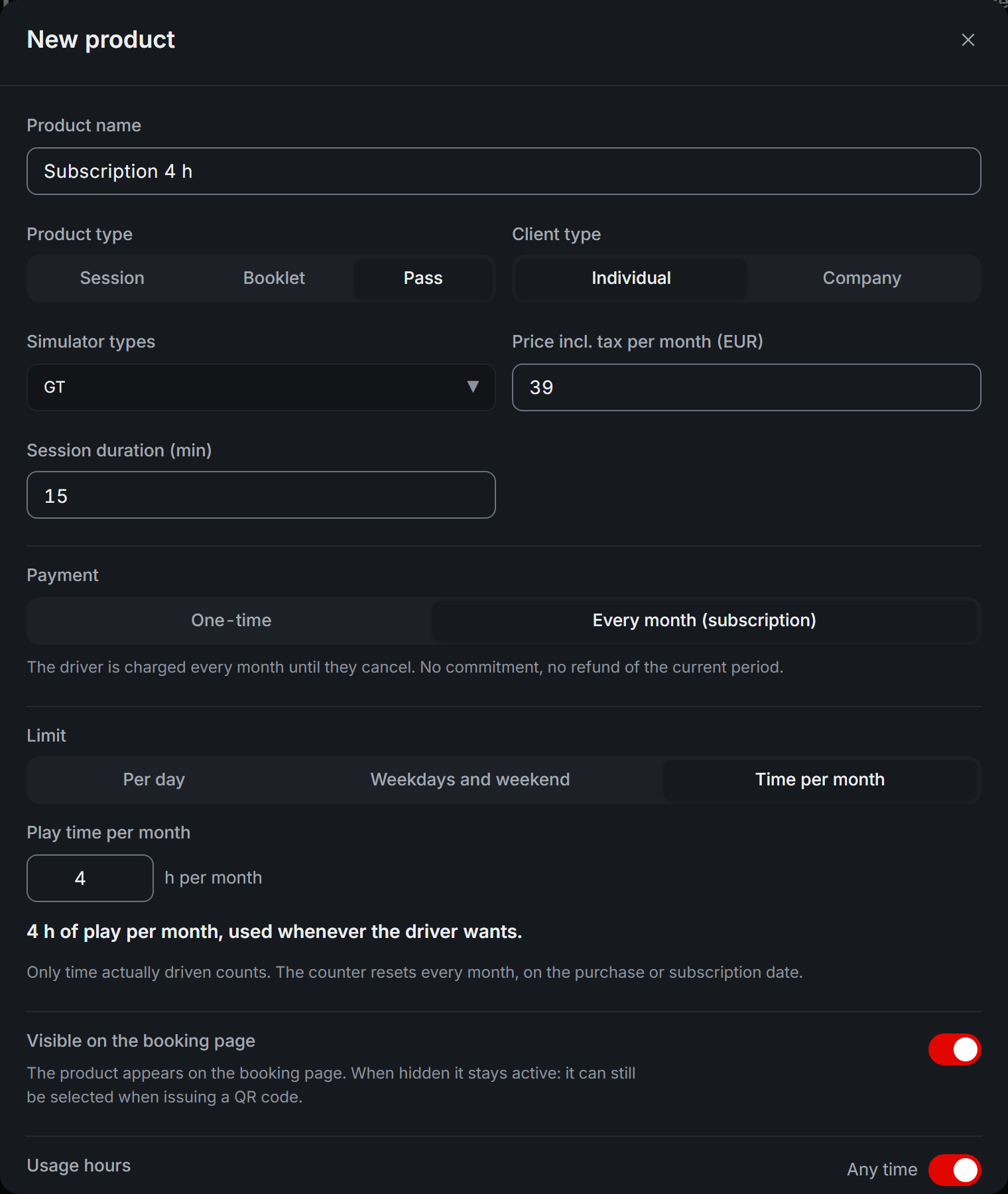
In NEXUS, open Products, click New product, then choose Pass in Product type and Individual in Client type.
Choose monthly payment
In Payment, choose Every month (subscription). The form confirms it: "The driver is charged every month until they cancel. No commitment, no refund of the current period."
The Validity block disappears: a subscription has no end date, the payment is what keeps access open.
Payment is chosen when the product is created and cannot be changed afterwards. To switch from a pass to a subscription, create a new product.
Describe the subscription
| Field | What to enter |
|---|---|
| Product name | For example 4 h subscription. This is the title of the card on the booking page. |
| Simulator types | One or more types. |
| Price incl. tax per month | The amount charged every month. |
| Session duration (min) | The duration of each session, in whole minutes. |
Set the limit
In Limit, choose one of the three options. They cannot be combined.
- Time per month: in Play time per month, enter a number of hours, for example
4. The customer plays this time whenever they like. Only time actually driven counts, and the counter resets every month, on the date of the subscription. - Per day or Weekdays and weekend: a number of sessions, as for a pass. See Sell a pass.
Below the fields, a sentence sums up what you are selling, for example "4 h of play per month, used whenever the driver wants.".
Set the sale and the hours, then create
Set Visible on the booking page and Usage hours as for a booklet: see Set up the sale and the hours.
Click Create.
Result
The subscription appears in Products with the note Subscription under its name. The
Validity column shows Every month, and the Uses column its limit, for example
4 h / month.
On the booking page, it is listed under the Passes tab. Its card shows its name, its price followed by per month, and the line "4 h of play per month, no commitment, cancel any time".
What the customer sees
On the booking page, when they choose the subscription:
- the button becomes Subscribe;
- the total is labeled To pay today, followed by "Then … every month, on the same date. No commitment, cancel any time.";
- the checkbox becomes "I have read and accept the terms and conditions. The subscription renews every month until cancelled.";
- the Promo code field disappears: a subscription does not accept promo codes.
After paying for the first month, they receive an email "Your … subscription is active" with their QR code, 4 h of play per month, the Price per month, the Next payment, and an Open my driver area button.
The customer keeps a single QR code for the whole life of their subscription. Each paid month extends that same QR code: nothing is sent again on renewal.
The driver area
Each subscriber has an online area in your colors, at the address
https://app.getomnisim.com/pilot/<your-company>. They sign in with the email address of
their subscription: they receive a sign-in link, without a password, valid for 15 minutes.
There they find:
- their remaining time or sessions, and the reset date;
- their QR code, which they can save;
- the date of the Next payment;
- Card and invoices, to change card or find their invoices;
- Cancel my subscription.
When they cancel, their access stays open until the end of the paid month, without a refund. They can change their mind with Resume my subscription as long as that month is not over.
Holders of a pass paid in one go have the same area, without the payment part: see The driver area.
If a payment fails
| Moment | What happens |
|---|---|
| The payment fails | The customer receives an email "The payment for your … subscription did not go through", with a Pay from my driver area button. Your driver profile shows Payment late. |
| For 7 days | Their access stays open. With Time per month, they have a reduced share of their time, for example 56 minutes for a 4-hour subscription. The rest comes back as soon as they pay. |
| After 7 days | The subscription is Suspended: the simulator refuses their QR code until they pay. |
| After 30 days of suspension | The subscription is cancelled. The customer receives "Your … subscription has ended". |
As soon as they pay, access comes back and they get back the time they had not played.
Change a subscription on sale
You can change the price, the limit or the hours. The form reminds you: "Current subscribers keep their price and terms. Your changes apply to new subscriptions."
To stop selling it without affecting subscribers, hide it or deactivate it in Products. A subscription that has already been taken out cannot be deleted.
Give or sell a subscription at the front desk
You can hand over a subscription's QR code without online payment: QR codes › Create ticket, Single ticket format, then choose the subscription.
This ticket has the subscription's limit, but no recurring payment: it does not renew. You must therefore state how long it is valid. Its holder also has access to the driver area, until the end of the ticket.
Good to know
- A customer cannot subscribe twice to the same plan. The booking page tells them: "You already have an active subscription to this plan."
- A subscription can be given as a gift. The buyer pays for it and manages it from their driver area; the recipient uses it without seeing the price. See Sell a ticket as a gift.
- The month runs from date to date. Subscribed on the 12th, the subscription is charged on the 12th of each month, and the counter resets that day.
- The first month is paid in full, on the day of the subscription.
- Your terms and conditions must cover the subscription: renewal, cancellation, right of withdrawal. You alone are responsible for them.
- You can also cancel a customer's subscription: see Track and cancel a driver's subscription.
Troubleshooting
In NEXUS
| Message | Cause | Solution |
|---|---|---|
| Payment does not appear in the form | The product is not a Pass for Individual. | Choose Pass and Individual. |
| "The time per month must cover at least one session." | The time per month is shorter than Session duration (min). | Increase the time per month, or reduce the length of a session. |
| "Enter how long this subscription is valid, or its end date." | You are issuing the subscription from QR codes without stating its validity. | Enter a validity for this ticket. |
At the simulator
| Message on screen | Cause | Solution |
|---|---|---|
| "Your play time for this month is used up." followed by "It comes back in … days." | The month's time has been played. | The customer comes back on the date shown, or buys a session. |
| "Subscription suspended: the last payment did not go through. Pay from your driver area." | The payment failed more than 7 days ago. | The customer pays from their driver area. |
| "This subscription has ended." | The subscription was cancelled and its last period is over, or it was cancelled automatically. | The customer can subscribe again on the booking page. |
See also
Sell a pass
Offer access over a period, limited to a number of sessions per day, per weekdays and weekend, or to a play time per month, on one or more simulator types.
Sell a ticket as a gift
Your customer buys a session, a booklet, a pass or a subscription for someone else; the recipient receives the ticket in their own name and chooses their username at the simulator.